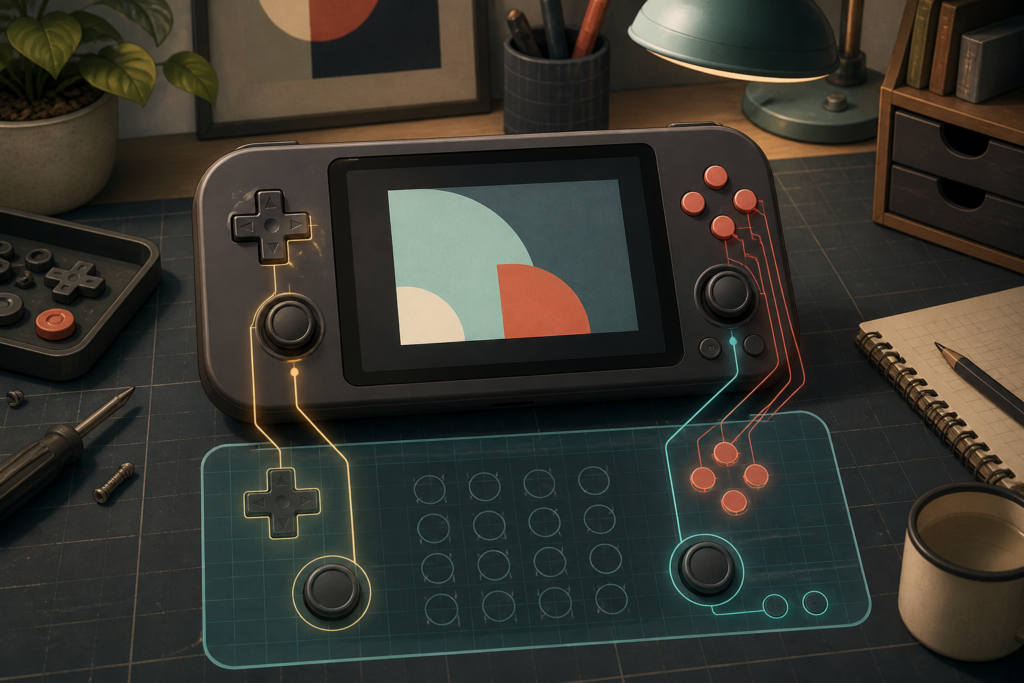
Anbernic's August 4 system update for one of its Android handhelds added a unified launcher, a control center, and a keymapper that can save multiple profiles. Those are useful tools. They also add one more place where a button can be reassigned before a game sees it.
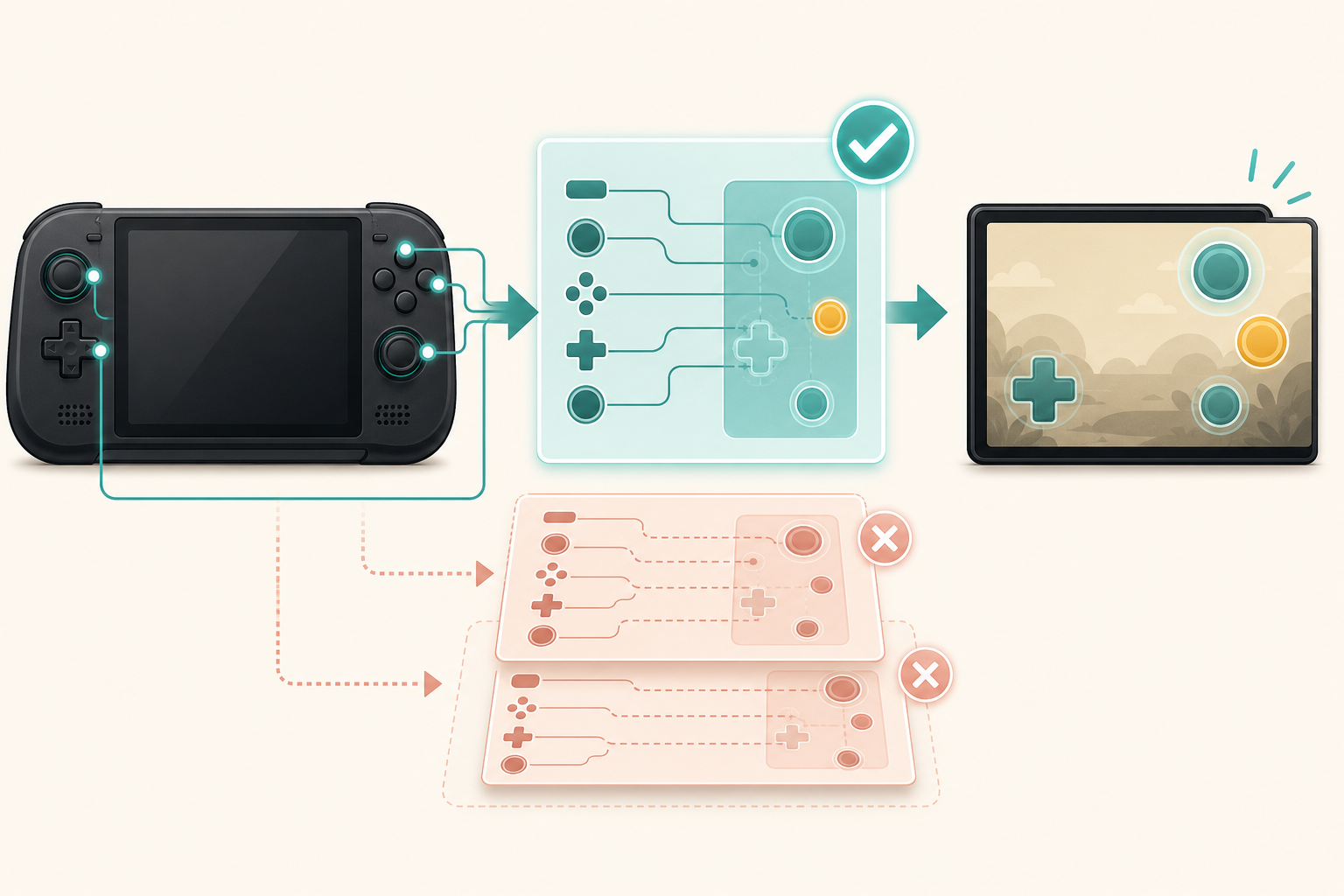
My recommendation is to keep exactly one mapping layer active for each game. Let an emulator or Android game handle the physical controls when it already supports them. Turn on the handheld's touchscreen mapper only for a title that has no useful controller support, save a profile for that title, and disable any overlapping remap elsewhere.
One button can pass through several layers
The official Anbernic V1.15 update page says RG Keymapper converts on-screen controls into physical button inputs and can save multiple profiles. It also places mapping controls in a swipe-out control center. That makes profiles easier to reach, but convenience does not tell you which layer should own the input.
A physical button may first pass through the handheld's system mapper, then an emulator's input settings, and finally a game's own control menu. If two layers both transform the same press, you can get duplicate actions, swapped face buttons, a menu that will not accept input, or a control that behaves differently after switching apps.
Start with every extra mapper off. Open the game or emulator and test the directional pad, face buttons, shoulders, sticks, Start, and Select. If the native controls work, stop there. The cleanest configuration is the one with the fewest translators.
Use native gamepad input whenever it works
Android separates controller actions into button events and motion events. The current Android controller documentation explains that buttons use KeyEvent signals while analog sticks and triggers can use MotionEvent axes. A title designed for controllers can read those inputs directly, which is why a system-level touchscreen map is unnecessary for many emulators and games.
Configure those titles inside their own input menu. Map one controller, save the configuration, close the app, and reopen it for a quick check. If the app offers a per-system or per-game override, use the broad default first and add an override only when one title truly needs it.
Face-button labels can be confusing because different controller traditions put familiar letters in different places. Test by position and action, not by the letter you expect. Android's documentation notes that the standard key code refers to a consistent physical position even when a printed label differs. The useful question is not “Does this say A?” It is “Does the south button confirm in this app?”
Reserve the system mapper for touch-only games
A touch-only game is the right job for a tool such as RG Keymapper. Create one profile for that game, place each virtual target carefully, and map only the actions you need. Do not reuse a profile simply because two games put buttons in roughly similar corners. A shifted interface can turn “pause” into “spend the rare item,” which is a very modern way to recreate the pain of a lost cartridge save.
Test in a harmless menu or tutorial first. Check taps, holds, repeated presses, diagonal movement, and both triggers. If a button fires twice, turn off the game's native controller option or the system profile. My preference is native support when it is complete. Use the system mapper only if native support is absent or missing an essential action.
Save the profile with a clear game-specific name inside the mapper. Take screenshots of the layout and its sensitivity or dead-zone settings if the tool exposes them. A screenshot is not a backup of the profile, but it gives you a quick rebuild reference after an update or reset.
Back up saves before changing the control stack
Control experiments should not put progress at risk. Copy important save files and emulator configuration to another device before a system update, factory reset, or large mapper cleanup. A USB-C data cable made for file transfer is useful when the handheld and computer both support that connection. Some cables charge only, so confirm data support rather than judging the cable by thickness.
If the handheld supports removable storage, a USB-C microSD card reader can make manual backup easier. Check the device's supported card format and shut it down properly before removing media. Do not assume the card containing games also contains every Android app save.
Google's current Android backup guidance says some app data and device settings can be backed up to a Google Account, but not every app can back up or restore all data. That is the decision point: use Android backup where available, then manually copy any important emulator saves and profiles that the app documents as accessible. Do not promise yourself that a cloud toggle covered files you never verified.
A ten-minute mapping test
Pick one familiar game you can use under the site's emulation and copyright policy. With the system mapper off, test every physical control in the app's native configuration. If all essential actions work, save that native layout and leave the system mapper disabled. If the title is touch-only, create one system profile, map the minimum controls, and keep the app's controller remapping off.
Then close the app, reopen it, and switch away and back once. Confirm that the correct profile loads and that no button triggers two actions. If the layout breaks only after returning from another app, the profile switching deserves attention. If it is wrong from the first launch, clear the active mappings and rebuild one layer at a time.
My RetroArch starter guide uses the same philosophy for a larger emulation setup: begin with one system, make the controls comfortable, and protect the saves before expanding. The new control center does not change that order. It simply puts another powerful switch closer to your thumb.
My final call: native controller support gets first choice, a system keymapper is for touch-only gaps, and two active remapping layers are a bug invitation. Keep one owner for each button and document the exceptions.
Map it once, test it twice, then get back to the game.
Mike, the Gamer Dude