
ScummVM 2026.4.0 gives Android users a backup and restore feature for configuration and save files. That sounds like housekeeping, right up until an uninstall wipes the setup you spent three evenings tuning.
My recommendation is simple: update through an official ScummVM source, create the new backup before adding games or changing paths, copy that backup off the Android device, and verify one setting plus one save. Keep the game-data folders on their own backup plan. The new tool protects two important pieces, not the whole library.
Version 2026.4.0 closes a real Android gap
ScummVM released version 2026.4.0 on October 11, alongside the project’s 25th anniversary. The release adds support for a large group of games and includes an Android feature that can back up and restore the app’s configuration and saves. The official 2026.4.0 release notes also list Android performance and compatibility work.
The backup feature matters because the Android build normally keeps its configuration file and default save folder inside app-controlled storage. ScummVM’s Android documentation warns that uninstalling or downgrading can delete the app’s internal and external spaces. A launcher list is easy to rebuild when it has six games. It becomes an archaeology project after years of custom paths, keymaps, audio choices, and saves.
This is not a reason to uninstall just to admire the restore button. It is a reason to make the exit route while everything still works.
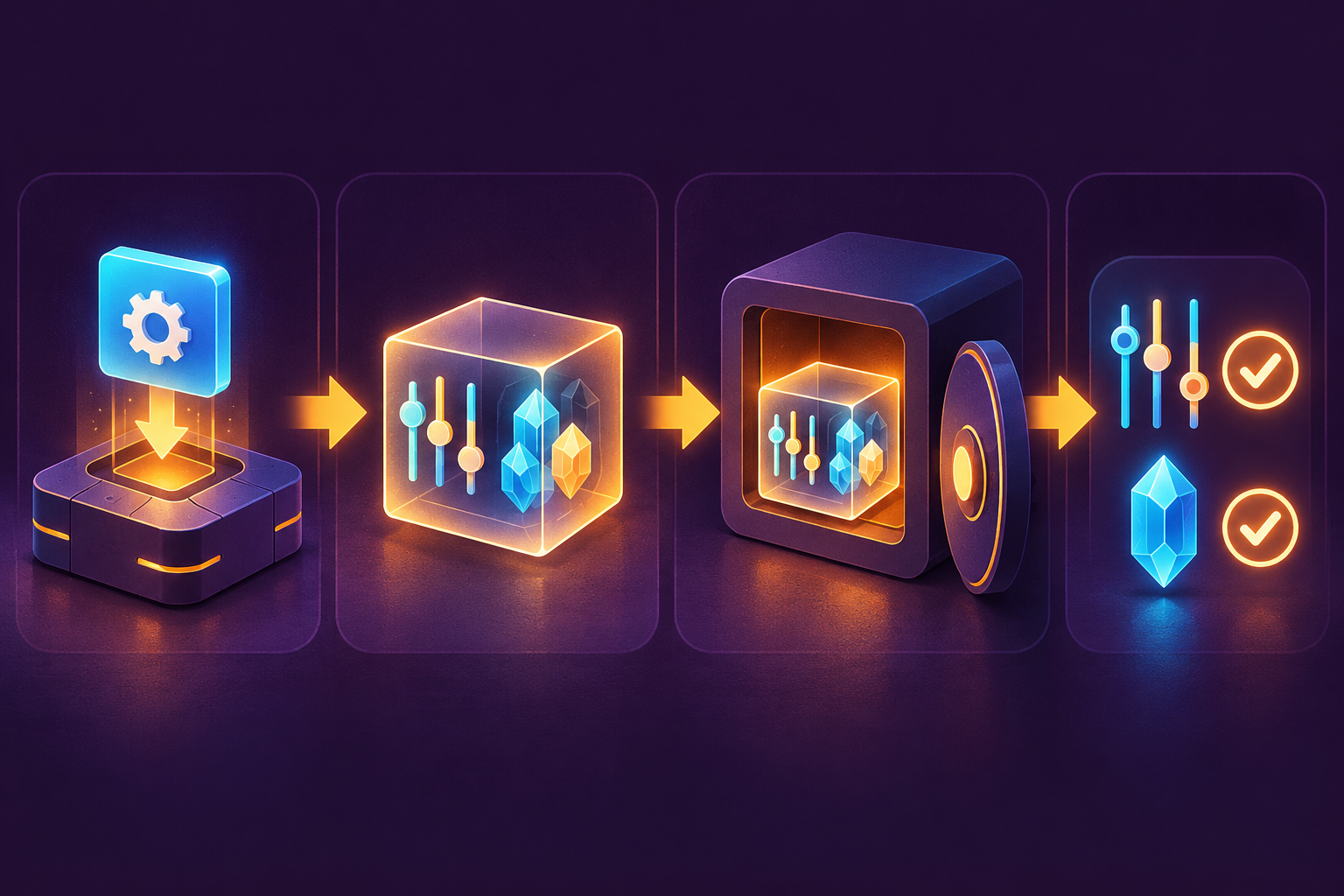
Know what the backup does not include
The release notes name configuration and saves. They do not say the new backup bundles every game-data folder, original disc extraction, soundfont, theme, or other file stored elsewhere on the device. Treat those as separate assets unless the export itself clearly proves otherwise.
ScummVM’s guide to handling game files explains that the program needs access to each game’s data files and can use folders on internal or external storage. It also points to ScummVM’s cloud and local web-server tools for moving files and synchronizing saves. None of that changes the legal boundary: use game files you are authorized to use, and do not download a mystery archive because an emulator can detect it. NerdHobbies spells out that line in its emulation and preservation policy.
Think of the new export as the map and your progress, not the whole countryside. Back up the lawful game folders separately, with their directory structure intact.
Make the export leave the device
After installing 2026.4.0, use the Android build’s backup command for configuration and saves. Choose a destination the Android file picker can reach, then confirm that the exported item has a current timestamp and a nonzero size. Do not stop at “backup completed.” Find the result in the Files app.
Next, copy it somewhere that will survive a lost, damaged, or factory-reset handheld. A computer, a second storage device, or an account you already trust for file storage can do that job. One copy in a different folder on the same handheld is tidier, but it is not disaster protection.
A dual USB-C and USB-A flash drive can be useful when the handheld and computer have different ports. Use storage you already own if it is dependable. The useful feature is an off-device copy, not a shopping ritual.
If the handheld has removable storage, a USB-C microSD card reader can simplify a separate copy of lawful game folders. Do not assume that moving the export to the card also backs up every game folder. Verify both jobs independently.
Test a setting and a save
A backup is a promise until a restore proves it. Pick a harmless configuration detail you can recognize, such as the launcher view or one game’s subtitle setting. Note its current state. Make a fresh manual save in a game you are authorized to use, close the game normally, and create the backup.
Change only that harmless setting, then run the official restore. Reopen ScummVM and confirm that the setting returned. Load the manual save and play long enough to confirm that it is the expected slot, not an older autosave. Avoid testing with a game that stores progress outside ScummVM or with a save you cannot replace.
If the restore fails, keep the current installation intact. Copy the backup and game folders to another device before troubleshooting. The Android guide documents the built-in LAN route for reaching the internal configuration file, and it allows the save path to be moved to shared storage. Those are recovery routes, not excuses to erase the working app first.
Update without mixing three jobs
The site’s earlier article about ScummVM public testing recommended keeping the stable installation separate from daily builds. That still holds. Version 2026.4.0 is now the stable baseline, so update the main install from an official source and keep any experimental build isolated.
Do the work in order: update, launch one known game, create the backup, move the copy off-device, then verify it. Add newly supported games only after that baseline passes. When several changes land at once, every broken path starts wearing the same fake mustache.
My call for Android players
Install ScummVM 2026.4.0 if the official package is available for your Android device. Use the new backup feature immediately, and keep its export away from the handheld. Maintain a separate copy of the lawful game-data folders because the release notes do not promise that the app backup includes them.
Protect the settings, protect the saves, and make the game files their own problem.
Mike, aka Gamer Dude