
PPSSPP multiplayer setup should start with one boring check: put every player on the same current release before changing ports, firewalls, or router settings. PPSSPP 1.20.4 is the current official release, and it includes new ad hoc relay status support plus several multiplayer interface improvements. My recommendation is to update the whole group to 1.20.4, choose one connection method, and prove a simple session works before touching advanced options.
That order matters. Multiplayer troubleshooting gets messy when one person changes the server, another changes a firewall rule, and a third is still running an older build. By the end, everybody has a different problem and the router has become an innocent suspect.
The NES and Genesis years trained me to check the physical connection first. A loose RF switch or controller plug could end the mystery quickly. Emulated multiplayer has more layers, but the same habit still works: match the baseline, test one path, then change one thing.
Update the whole group, not one device
PPSSPP published version 1.20.4 on May 16, 2026. The official notes call it an unusually large follow-up release and list live status support from compatible ad hoc relay servers, multiplayer interface improvements, and relay-mode fixes. Those are useful reasons to update, but a mixed-version group can erase the benefit.
The project’s official multiplayer wiki advises every player to use the same PPSSPP version for compatibility. Make that the first checkpoint. Have each person open the system information screen, compare the full version, and stop if one differs. Do not assume an app store, package manager, and downloaded installer all delivered the same build.
Back up normal in-game saves before updating. Save states capture emulator memory and can depend on emulator details, so they should not be the only copy of long progress. The NerdHobbies RetroArch starter guide explains the difference between normal saves and states. The same cautious backup rule applies here.
Pick ad hoc, infrastructure, or LAN
PPSSPP’s official multiplayer quickstart separates two game-side modes. Infrastructure connects a game to an online service. Ad hoc is peer-to-peer multiplayer, originally intended for nearby systems. PPSSPP can carry ad hoc traffic through a relay server, or players on the same local network can use a built-in ad hoc server.
For friends in different homes, start with the listed relay-server route. For two devices on the same home network, use the LAN instructions and keep relay mode unchecked when entering the host device’s address. Use infrastructure only for a game with a supported revival service. That decision tree prevents three valid methods from being mixed into one invalid setup.
Use the quickstart values exactly
Enable networking in PPSSPP on every device. For an ad hoc relay session, give each player a nickname and select the same relay server. For LAN play, one player enables the built-in ad hoc server, while the others add that device’s local address as a custom server with relay mode off. For infrastructure, the official guide calls for a separate username under the Infrastructure section.
Copy those values carefully. A nickname, infrastructure username, relay choice, and local address solve different parts of the connection. Treating them as interchangeable is like plugging a controller into the video port because both are near the front. The plastic may disagree before the software gets a vote.
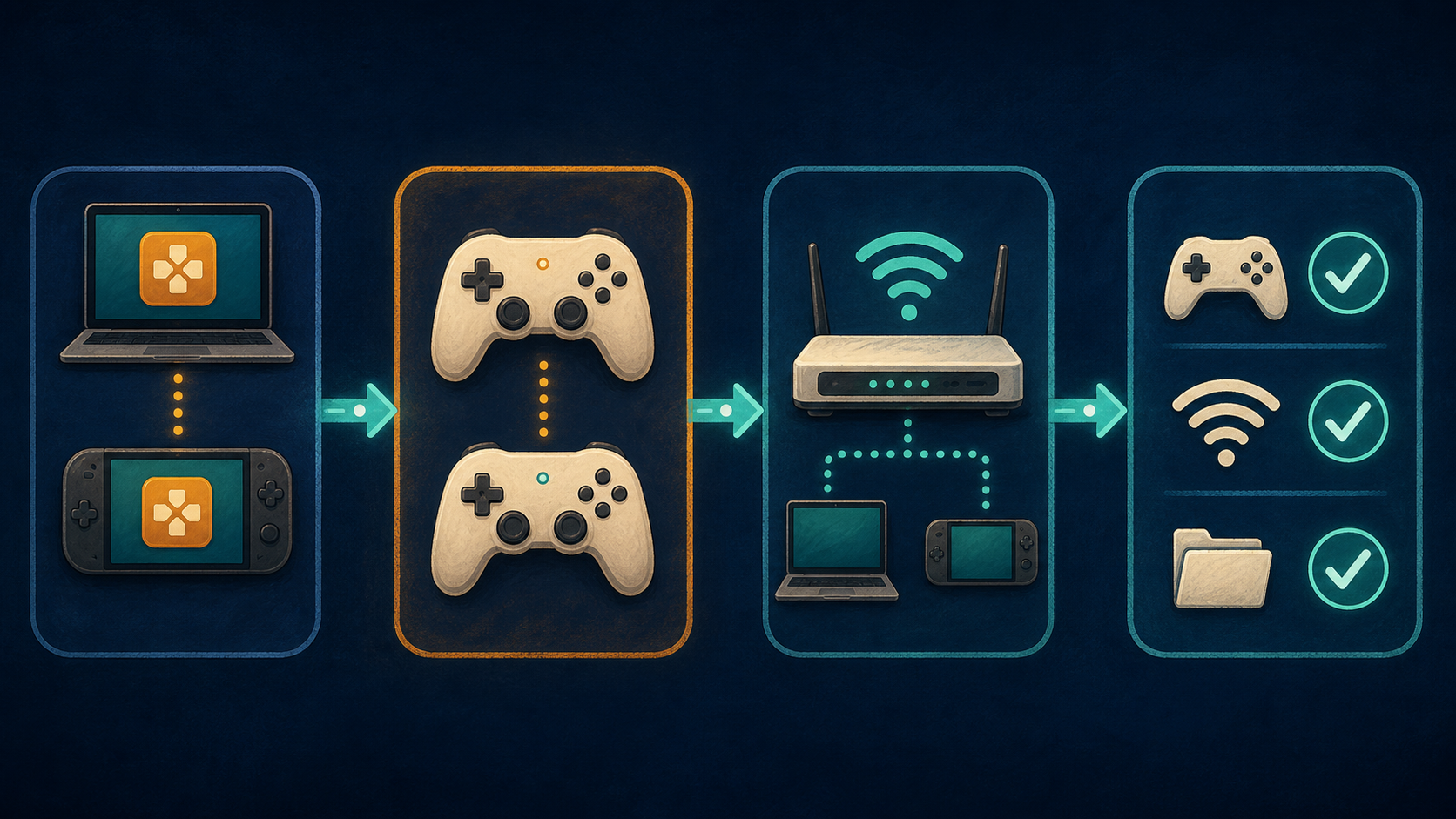
Test the boring parts first
Before hosting a room, launch the game normally on every device and verify that each controller works. Each player should be using game content they are legally entitled to use. NerdHobbies does not provide ROMs, ISOs, firmware, encryption keys, or sources for unauthorized files. The site’s emulation and copyright policy covers those boundaries.
A dedicated controller is useful when touch controls make multiplayer awkward. A wired USB controller for a computer or compatible mobile device is the simple choice when the connector, operating system, and button count all match the setup. Confirm compatibility before ordering. A controller cannot fix a server mismatch, but it can remove one input variable.
For nearby devices, test on the same Wi-Fi network first. If wireless conditions are genuinely unstable and the device supports wired networking, a USB-C Ethernet adapter may help isolate the network link. Check port type, operating-system support, and charging needs. Buying an adapter before proving the problem is network-related is just troubleshooting with a receipt.
Fix one layer at a time
If players cannot see the same room, recheck version numbers, networking enabled, connection method, server selection, and nicknames in that order. Then confirm the operating system allows PPSSPP network access. Change one firewall setting only when the blocked connection points there, and do not disable security software as a blanket fix.
Keep a short note of the working values. Record the PPSSPP version, connection method, relay name or LAN host, and any operating-system permission that was required. Do not record public-server passwords or other secrets in a shared note. A clean baseline makes the next session much less dramatic.
If the session works locally but not through a relay, the decision is to troubleshoot the relay route. If neither local nor relay play works, return to version, game launch, input, and networking settings. The test result should choose the next step.
My multiplayer setup call
Put every player on PPSSPP 1.20.4, back up normal saves, and select exactly one route. Use a relay for remote ad hoc play, the built-in server for a same-network session, or infrastructure only when the game has a supported service. Prove controllers and local launching first, then investigate permissions or network hardware only when the evidence points there.
Match the versions, pick one path, and save the heroic router surgery for later. See you in the lobby. Gamer Dude out.