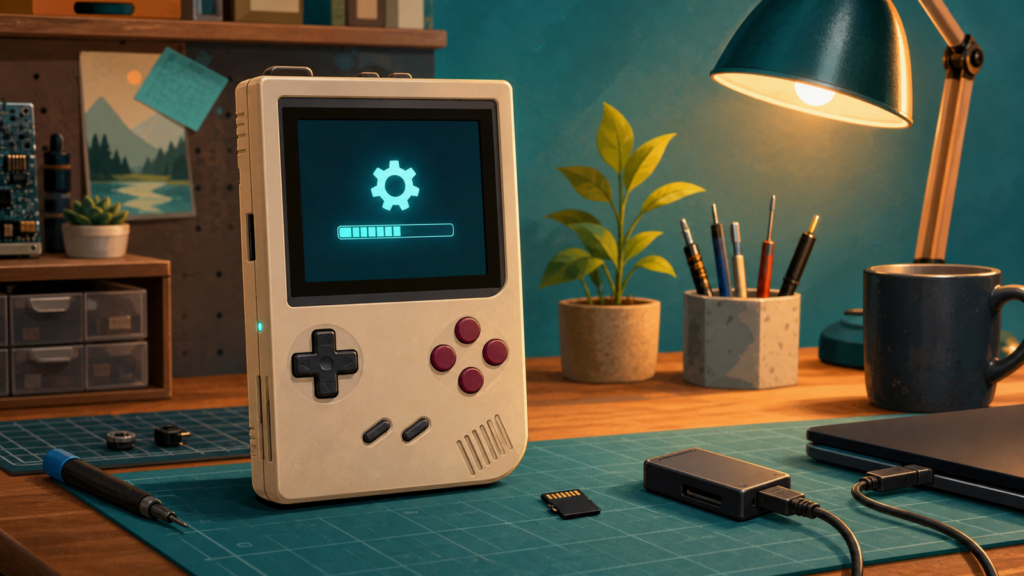
Analogue Pocket firmware 2.6.0 is a worthwhile update for most owners. It adds automatic screen dimming and power-off controls, tidies the menus, improves parts of the openFPGA experience, and fixes sleep, wake, and Dock issues. My recommendation is to install it, then spend five minutes checking the settings and accessories you actually use.
This is not one of those updates that needs a weekend, three forum tabs, and a lucky screwdriver. Analogue provides a direct firmware file and a short installation procedure. The cautious part is making sure the microSD card is prepared correctly and leaving the handheld alone while the update runs.
The NES and Genesis never asked me to update an operating system. They found other ways to test my patience, usually involving an RF switch or a cartridge that needed another try. Modern handhelds are friendlier if we treat firmware as maintenance instead of a slot machine for new features.
Why I would install version 2.6.0
Analogue published Pocket firmware 2.6.0 on June 17, 2026. The official notes add Auto Dim and Auto Off controls under Settings, PocketOS, and Power Saving. They also list menu organization improvements, sleep and wake fixes, Dock fixes, a Recent category for openFPGA, and faster access to its cached menu.
That is enough practical value to justify updating a regularly used Pocket. The decision changes if the handheld is needed for an event or trip in the next few hours. In that case, leave the working setup alone until there is time for a normal test. Firmware maintenance is best when nobody is waiting for the second controller.
Prepare one clean microSD card
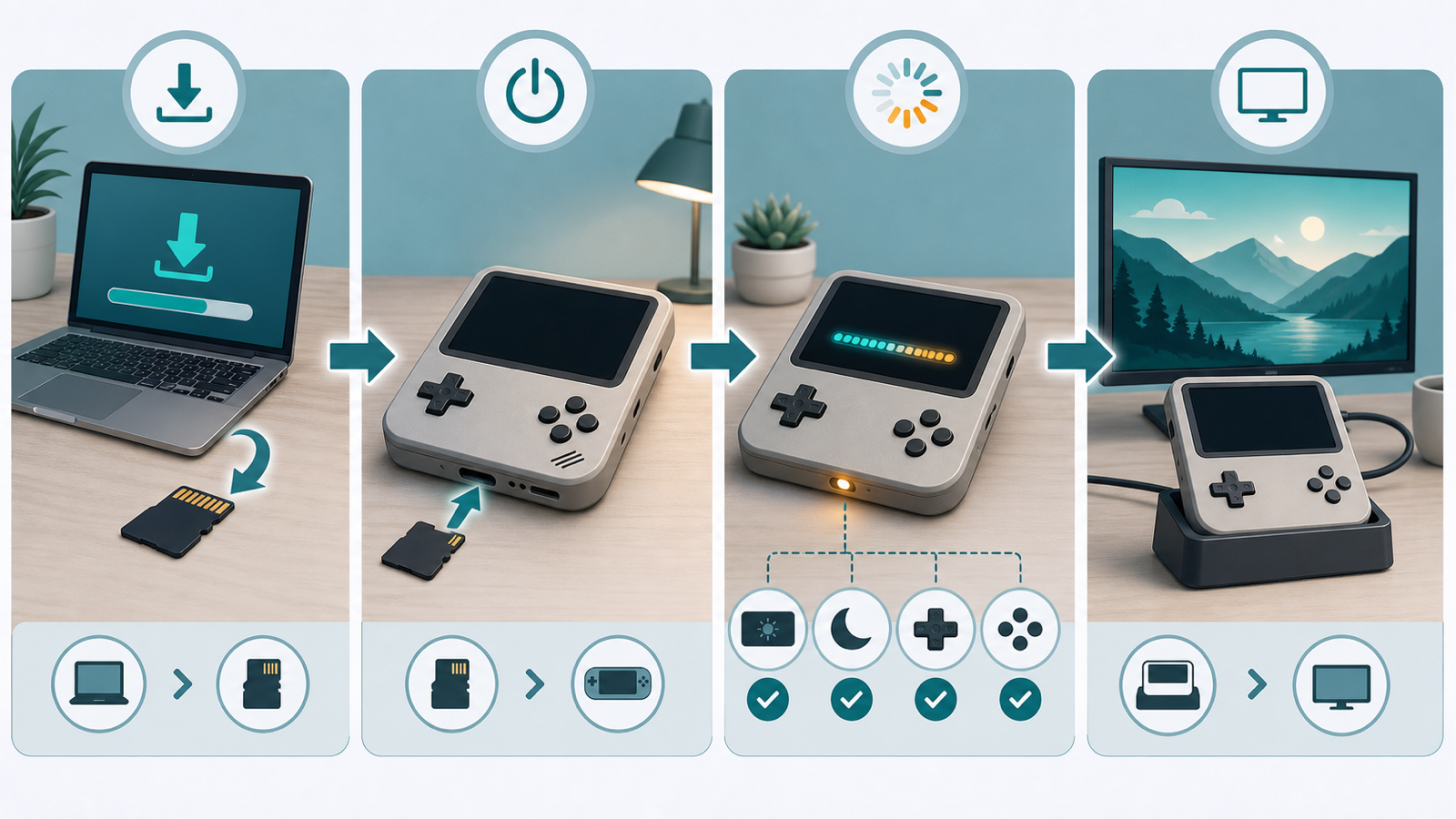
Analogue’s official firmware update guide requires a microSD card formatted as FAT32 or exFAT. Download the firmware only from Analogue, place the file at the root of the card, and make sure no other firmware file is there. The root is the top level that appears when the card opens, not a folder buried inside it.
Use a known-good card already on hand. If a dedicated update card would solve a real reliability or organization problem, compare microSD cards and confirm that the computer can format the capacity you choose as FAT32 or exFAT. If the computer lacks a slot, a USB microSD card reader is useful only when its connector fits that computer. A new card or reader is not required when the existing gear works.
Eject the card through the operating system after the copy completes. Then power the Pocket off fully before inserting it. Sleep is not the same as a full shutdown for this job.
Let the updater finish without assistance
Power the Pocket on with the prepared card installed. Analogue says the device will detect the file, show update progress, and restart when finished. The official estimate is three to four minutes. Do not remove the card, press buttons to hurry it along, or power off the handheld during that process.
If the update does not start, stop and recheck the filename location, card format, and presence of older firmware files. Recopying the same file into several folders only creates a tiny treasure hunt for later. Change one thing, eject the card cleanly, and try again.
Recheck power saving and sleep
Version 2.6.0 adds Auto Dim and Auto Off, with official defaults of five minutes for dimming and two hours for automatic power-off. Open the Power Saving menu after the update and decide if those defaults fit the way the handheld is used. A player who pauses often may want a longer dim delay. A Pocket that spends time on a display stand may need a shorter one.
Test sleep and wake once with a familiar cartridge or lawful openFPGA setup. Save normally first, enter sleep, wait a moment, and wake the system. This is a basic smoke test, meaning a short check that the main functions still behave. It does not prove every cartridge and accessory is perfect, but it catches an obvious problem before a longer session.
Test each part of the setup separately
Launch one familiar cartridge, check controls and audio, and return to the menu. If openFPGA is part of the setup, open one established core with content you are entitled to use, then confirm that quitting returns to its menu as described in the release notes. The site’s emulation and copyright policy explains the boundary around game data, firmware, and circumvention.
Dock users should test the television, audio, and one controller after the handheld itself passes. The 2.6.0 notes add support for specific controller models and call for current controller firmware for one documented button combination. Read the note for the exact accessory instead of updating every controller in the drawer. One working baseline makes a new pairing problem much easier to identify.
Owners still choosing a portable setup can use the NerdHobbies retro handheld buying guide to compare screen shape, controls, software, and storage without turning firmware version numbers into the whole decision.
My call after the update
Install Analogue Pocket firmware 2.6.0 when there is time for a clean card, an uninterrupted update, and a short test. Recheck the new power-saving defaults, then test cartridges, openFPGA, and Dock accessories one at a time. If the current setup is needed immediately and works, schedule the update for a quieter evening.
Give the updater four peaceful minutes, then get back to the cartridges. See you after the restart.