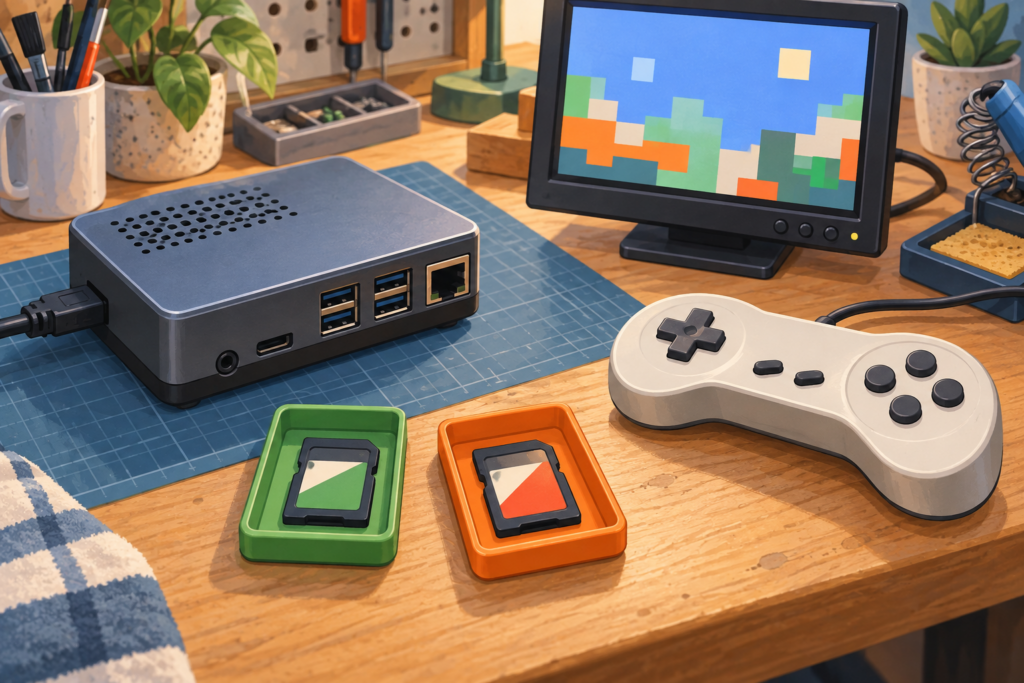
Raspberry Pi Official Magazine put retro gaming on the cover of its September 2026 issue, which is exactly the sort of nudge that can turn a quiet weekend into cables, cards, and one mysteriously missing adapter. The project is still easier when the first decision is boring.
My recommendation is to put a Raspberry Pi retro-gaming build on a separate microSD card or USB drive, not on the card holding a working everyday Raspberry Pi OS setup. Download an official image that matches the exact board, verify the destination before flashing, boot with one controller, and add one lawfully obtained game or homebrew title before copying a library.
That separate card is the rollback plan. If the experiment goes badly, shut down properly, remove it, and put the original system back. During the 16-bit years, a bad rental choice cost a weekend. A bad flash target can eat the family photo folder, which is a much less charming story.
The magazine is the spark, not the operating system
The September 2026 Raspberry Pi Official Magazine issue highlights retro gaming as a current project idea. It does not mean there is one universal retro image for every Raspberry Pi or one legal bundle containing every old game worth remembering.
A system image is a complete prepared disk layout written to removable storage. Flashing is the process that writes that image and replaces the existing contents of the target. Those definitions matter because an image is not an ordinary app you drag into a folder. Selecting the wrong destination can overwrite the wrong drive.
Choose the project before the image. If you want a dedicated couch-friendly appliance, a distribution such as Batocera can be a reasonable route. If you want a general Raspberry Pi OS computer with a few emulator applications, keep Raspberry Pi OS and follow each project’s official installation documentation. For a first dedicated build, I prefer the appliance route on separate media because the purpose and rollback are both obvious.
One card gives the experiment a clean boundary
Do not reuse the only card that currently boots a working computer. Label it, shut the Pi down through its menu or operating system, remove power after activity stops, and set the card aside. The project card should be empty or contain only data you have already backed up.
A microSD-card category is useful only after you confirm the Pi model, chosen operating-system image, capacity needs, and seller authenticity. A USB microSD-card-reader category helps when the computer lacks a compatible reader, but the connector and card format still need to match. Product titles do not verify flash quality or genuine capacity.
Give the everyday card and project card different physical containers or color labels. Do not rely on two nearly identical black rectangles and confidence. Before opening any imaging tool, disconnect unrelated removable drives. Fewer candidates in the storage list means fewer opportunities to choose the wrong one.
Match the image to the exact board
The official Batocera installation guide tells users to download an image that matches the target architecture and supported device. Architecture is the processor and platform family the image was built for. An image for a desktop PC, another single-board computer, or a different Raspberry Pi model is not interchangeable merely because the filename looks familiar.
Check the board model printed on the hardware or shown by the current operating system, then use the project’s supported-device page to choose the exact download. Select the stable branch for a normal build. Batocera’s official release guide recommends stable for most users and describes Butterfly as the development route for people testing features and helping fix bugs.
My decision rule is simple: use stable unless a documented problem is fixed only in a development build and you are prepared to report results. Do not use a beta because a video called it faster. Keep the downloaded filename and release notes until the new card has survived several clean boots.
Flash only after checking the target twice
The official Raspberry Pi Imager project provides the imaging utility for Raspberry Pi boot media. Batocera’s guide lists it as an image-writing option. Open the tool, choose the custom image when required, select the project card, and pause before confirming.
Read the selected drive’s name and capacity, then compare them with the card you physically inserted. If they do not match, cancel. If the computer still lists several similar drives, close the tool and disconnect the unrelated ones. The confirmation screen is not decorative. It is the last checkpoint before existing data on the target is replaced.
Let the write and verification finish. If the computer offers to format unfamiliar partitions afterward, cancel that dialog. Batocera explains that its boot and user-data partitions may not look normal to another operating system. Formatting them would undo the project before its first boot.
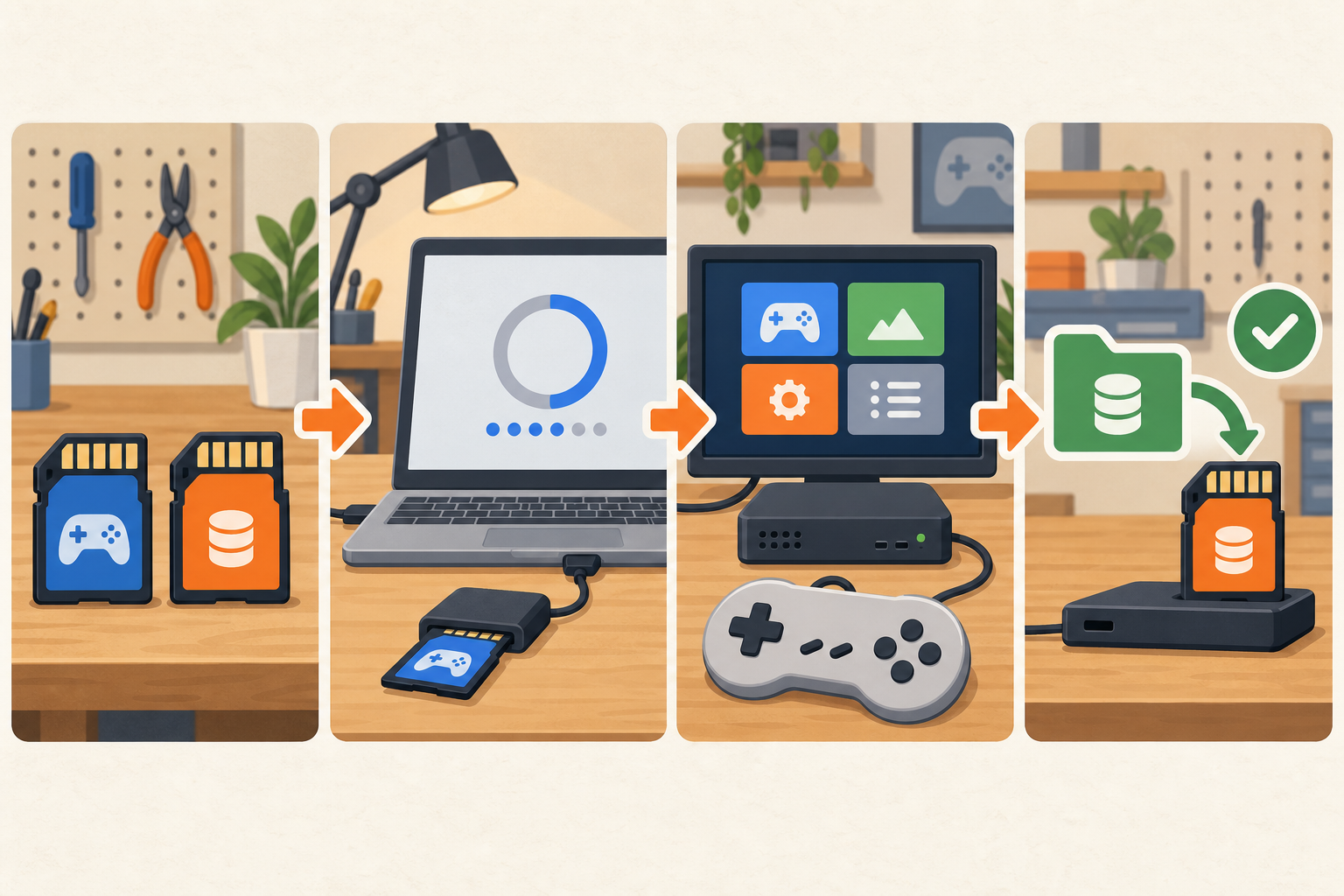
Add one lawful system before a library
Boot the project card and let its first-run storage setup finish without cutting power. Connect one known-compatible controller and map it through the distribution’s documented menu. Test navigation before adding content. If buttons are wrong now, a thousand game entries will not improve them.
Add one lawfully obtained homebrew title, public-domain game, or personal copy created through a method you are legally allowed to use. Follow the emulator project’s file-format documentation. Do not download a preloaded image, mystery ROM set, BIOS pack, title key, firmware archive, or “complete collection.” Owning original media is not blanket permission to bypass copy protection or distribute its contents.
The NerdHobbies RetroArch starter guide explains cores, controller setup, saves, and folders once the operating system is stable. The emulation and copyright policy covers the legal boundary. The first successful test should prove that the image boots, the display is readable, the controller maps correctly, and a lawful title starts and exits.
Back up user data before tuning
After that clean test, find the distribution’s documented user-data location and copy the configuration, saves, controller mappings, and any lawful content you need to preserve to separate storage. Confirm the copy contains files and record which operating-system release created it. A backup made before shader experiments and per-game overrides is wonderfully dull insurance.
Change one layer at a time. Add a small group of games, test. Adjust one controller profile, test. Apply an official stable update only after reading its notes and refreshing the backup. If a change breaks the build, restore the affected configuration or reflash the project card. The untouched everyday card remains outside the experiment.
Do not pull power because a menu appears frozen. Wait for storage activity to stop, use the documented shutdown route, and troubleshoot from the project’s official guide. Removable storage is convenient, not psychic. It cannot guess that the plug was pulled for dramatic effect.
The separate-card call
For a first Raspberry Pi retro build, use a dedicated card, a stable image matched to the exact board, and one lawful test title. Verify the flash target twice and back up user data before customization. Keep the working Raspberry Pi OS card untouched until the new setup has earned trust.
One project, one card, one easy way back. Gamer Dude out.