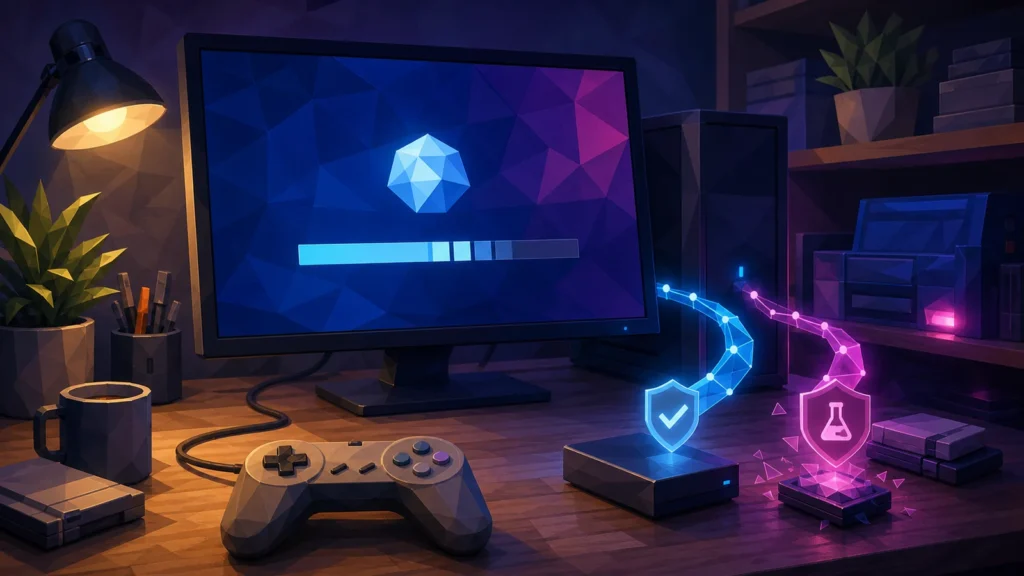
DuckStation can update from two channels, and the names make the choice sound almost too easy. Stable is less frequent and more tested. Preview is built as the project changes and may contain bugs. For a computer or living-room box used to play games, I recommend Stable.
That answer is especially timely now. The project published a Stable build on July 25, while a new Preview build appeared on August 1. Fresh code is moving through the Preview lane, but a recent Stable checkpoint already exists for the rest of us. That is a good moment to make the boring choice.
I spent enough of the early emulation years juggling programs and configuration files. The hobby is much friendlier now, but an update channel can still turn a quiet evening into an archaeological dig through settings folders. I would rather save that energy for figuring out why a polygonal character’s face looked so surprising in 1997.
Stable and Preview have different jobs
DuckStation’s official README says Stable tracks the project’s latest GitHub release, receives less frequent updates, and has more testing. Preview is built when commits are pushed, tracks the pre-release, and may contain bugs because it has received minimal testing.
Use Stable if this is your main installation, other people use the setup, or you care more about dependable saves and controls than seeing each change immediately. Use Preview only when its current notes name a fix you need, you are testing software or hardware compatibility, or a maintainer asks you to reproduce a problem there. Curiosity alone is not wrong, but it belongs in a separate test installation.
If you still need to choose the emulator itself, our emulator selection guide explains why project documentation, compatibility, and behavior with your games matter more than the longest feature list.
The July Stable build is a useful checkpoint
The project’s official releases page lists a July 25 Stable build and an August 1 Preview build. Those dates do not prove one build runs a particular game better. They show that Stable is current enough to be the sensible baseline while Preview continues to receive newer changes.
Check platform requirements before updating. The official documentation currently calls for Windows 10 or 11 version 1809 or newer, a Linux distribution equivalent to Ubuntu 22.04 or newer for the AppImage, or macOS 13.3 or newer. On Windows, use the official installer or archive from the project. If a missing Visual C++ runtime stops launch, follow the project’s link to Microsoft’s supported runtime download rather than grabbing a stray DLL from a download site.
Back up the user directory, not just save states
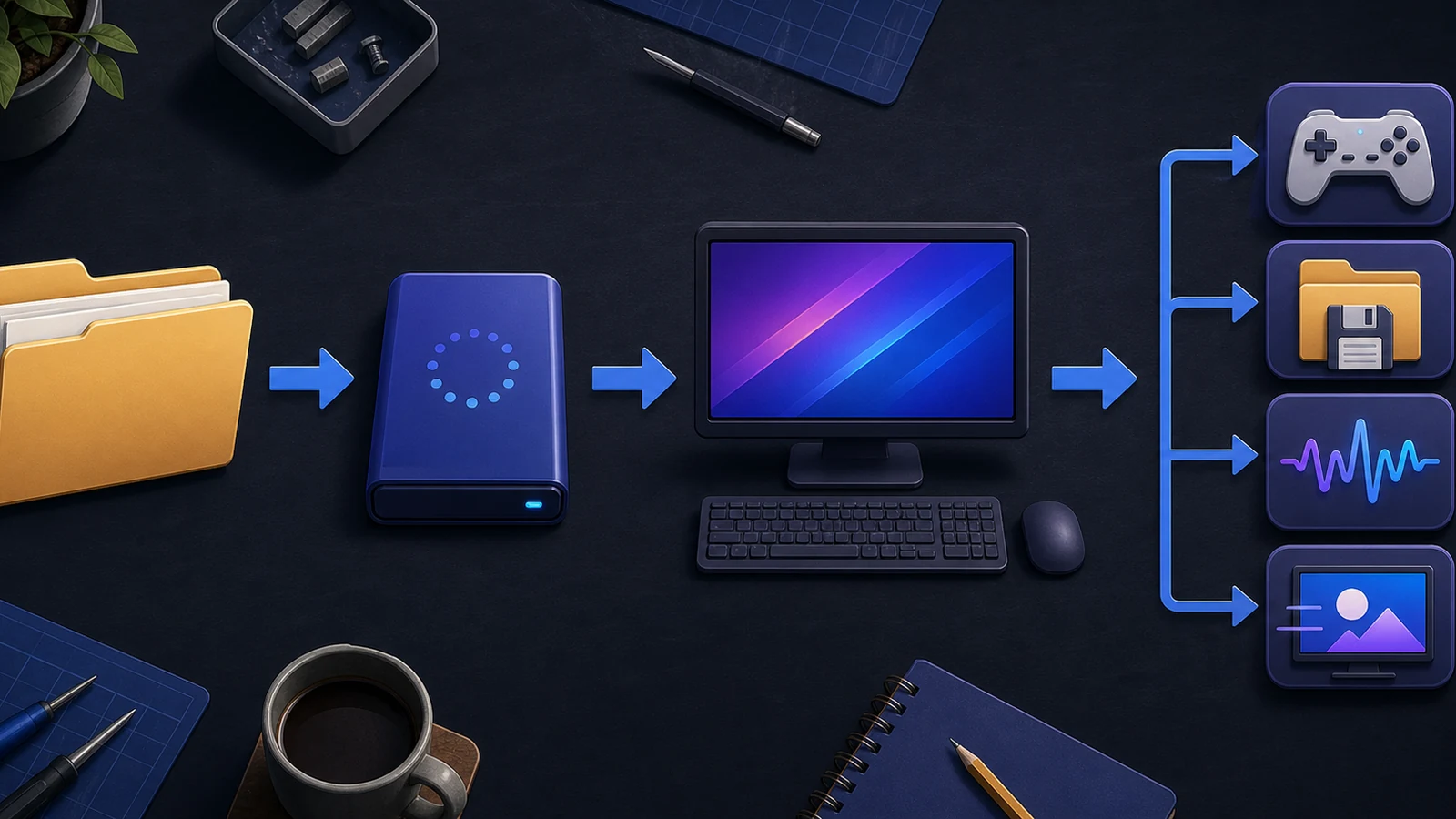
DuckStation’s user directory holds settings, memory cards, save states, and the BIOS directory. The README lists the default locations as AppData\Local\DuckStation on Windows, the XDG data directory or ~/.local/share/duckstation on Linux, and ~/Library/Application Support/DuckStation on macOS. The Tools menu also provides an Open Data Directory shortcut.
Close DuckStation, copy that whole directory to another location, and date the copy before an update. A second folder on the same drive can undo a bad setting change, but it is not protection from drive failure. An external SSD for backups is useful when it is also part of a real backup routine. Buy it for that routine, not because an emulator update requires new hardware.
Run a five-minute smoke test
A smoke test is a quick check that the basic system still works. After updating, launch one lawful game you know well with default or previously proven settings. Make a normal in-game save, close the emulator, reopen it, and load that save. Save states are handy, but the emulated memory card is the better baseline for this check.
Next, test controller input, audio, full-screen mode, and one scene with steady scrolling or camera movement. Do not turn on a new renderer, texture pack, frame pacing option, and controller profile during the same test. One change at a time keeps cause and effect from hiding under the couch cushions.
A wired USB controller for PC makes a useful diagnostic baseline only if it supports your operating system and the button layout you need. It can separate a wireless pairing problem from an emulator input problem. If your regular controller already works over a cable, use that before buying anything.
If a game breaks, restore default settings for that title before abandoning the new build. Then compare Stable with your backed-up configuration. A problem that appears only on Preview is a reason to return to Stable and report the affected version, renderer, operating system, and exact steps.
Preview needs a specific reason
Preview makes sense for testing a recent fix, checking support for a particular device, or helping confirm a reproducible bug. Keep the test narrow. Write down the previous version, copy the user directory, read the commits or release notes, and use the same game and settings before and after.
Do not build a permanent recommendation around one Preview snapshot. The channel changes as commits land, so advice without a version or date can expire quickly. If the experiment succeeds, decide if you need that improvement now. If not, return the main setup to Stable and let the change receive more testing.
Keep the legal boundary visible
DuckStation requires a compatible BIOS image and does not provide one. Use BIOS and game data you are entitled to use under applicable law, and do not download preconfigured bundles that include copyrighted games, BIOS files, firmware, or keys. Owning a disc does not automatically make every copying or circumvention method lawful.
Our emulation and copyright policy explains the site’s approach. Download the emulator only from its official project page or recognized repository, and keep your own lawful content separate from the program.
My pick for the main setup
Use DuckStation Stable, back up the user directory before updating, and run the same short test every time. Keep Preview for a named fix or a deliberate experiment. A main setup should make the game the interesting part.
Back up the folder, choose Stable, and let the old polygons do their charming little dance. Happy tinkering.